
Recycle Old Laptop: A Complete Guide
A laptop that still works may have another useful life, while a broken one should go to an electronics recycling program rather than the trash. Before handing it off, consider whether someone can use it, then protect your personal data and choose an appropriate e-waste route. A secure erase is a data-wiping method designed to make stored data unrecoverable with ordinary recovery tools. That step matters because files can remain on a device after you stop using it, even when you have copies in cloud storage. The right handoff keeps a usable computer in service or sends an unusable one to a program that can handle its materials. Keep the device until you have saved anything you need and chosen a responsible handoff.
Key Takeaways
- Reuse a working device when its software remains supported and it meets someone’s needs.
- Back up the files you want before deleting or erasing anything.
- Sign out of accounts and turn off device tracking before handoff.
- Use an electronics recycler, take-back program, or local collection site for unusable devices.
- Keep lithium-ion batteries out of household trash and curbside recycling.
- Check what your chosen program accepts before traveling or shipping.
Should You Repair, Donate, or Recycle an Old Computer?
A laptop that boots reliably and runs supported software is usually a better candidate for reuse than immediate recycling. Start with function, then weigh repair costs, battery health, and what a recipient needs. If the computer can meet someone’s needs safely and reliably, keeping it in use is often the better choice.
If the computer can meet someone’s needs safely and reliably, keeping it in use is often the better choice.
Age alone does not decide its future. A 10-year-old device may still handle light tasks if its hardware works and its software remains compatible and secure. Linux is one possible operating system for some older computers, but check that the model supports it and that security updates are available.
Keep a working device in use
Repair makes sense when a modest fix can restore a useful computer. A new charger, more memory, or a replacement battery may solve a specific problem. Compare the repair cost with the device’s likely service life, and check whether the battery holds a charge without swelling or overheating.
Donation can help when the computer works well enough for a clear purpose. A nonprofit may require a working device and its charger, and it may not have staff to repair or refurbish equipment. Ask what software, condition, and accessories the recipient requires before you make plans.
Resale is another option if the computer has useful performance and a clear market. You can also repurpose it for a task such as playing music or storing files, provided its software and security remain supported. Remove your personal data before it changes hands.
When age or damage makes recycling the better choice
Choose recycling when the screen, main board, or other major part has failed, or when safe repair costs more than the device is worth. A weak battery, missing parts, and unsupported software can also make reuse impractical. Reuse should not mean passing an unreliable or insecure computer to someone else.
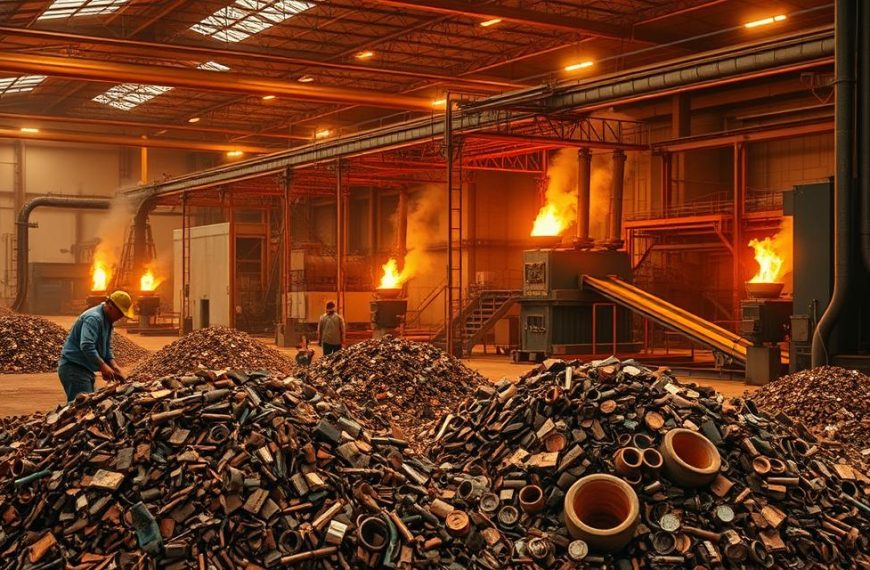
Recycling recovers materials from electronics when another useful life is no longer realistic. Used electronics have an estimated material value of $62.5 billion annually, so proper processing can return valuable materials to use. Ask a potential donation recipient what condition and accessories it accepts before handing over the device.
What to Do Before You Recycle an Old Laptop
Before handing off a device, copy the files you want to keep to storage you control. Do this first, before deleting anything or resetting the computer. A backup on an external drive or in cloud storage gives you a separate copy to check.
Use this five-step checklist to prepare the computer. Keep the replacement device nearby when you need to transfer software details or check account settings. Your exact steps may vary by operating system, but the order helps prevent missed files and accounts.
Save files and sign out of accounts
- Back up important files to external storage or cloud storage, then open a few files to confirm the copies work.
- Transfer software license details you may need on a replacement device, including purchase records or activation information.
- Sign out of email, cloud storage, and app accounts so the next user cannot access your sessions.
- Turn off device tracking and remove the computer from relevant account lists, including Microsoft or Apple devices where applicable.
- Remove USB drives, SD cards, and discs, then check each slot and accessory compartment.
Account removal matters even after you erase the drive. A device can remain tied to an account or tracking service, which may block a new owner from setting it up. Check the account’s device list after removal so you can confirm the computer no longer appears.
Remove external media and prepare the device
Chromebooks have a separate reset process. Sign out of the Google account first, then use Powerwash to reset the Chromebook. Follow the on-screen steps, and make sure you have backed up any locally stored files before starting.
Look for files stored outside your usual folders, such as downloads, desktop items, or a second user profile. If you use a browser password manager or a mail app, confirm that saved information is available elsewhere before signing out. Do not rely on the cloud alone if a file never finished syncing.
Keep the charger with a working device if a recipient or program requests it. Separate accessories you plan to keep, and gather any removable storage you found. Check the ports and card slots once more so no removable media leaves with the device by accident.
How to Erase Data Before Recycling
A factory reset is convenient, but its protection depends on the erase option and the drive. Deleting files is not enough, because ordinary deletion can leave data available for recovery. A factory reset does not always totally wipe a laptop, so choose a clean-drive option or a supported secure-erase tool.
Formatting alone may also leave SSD data behind. SSDs store data differently from older hard drives, so a basic format may not overwrite every location. Use the erasing feature designed for your operating system and storage type.

Use the operating system’s erase or reset tools
In Windows 11, open Settings, choose System, then Recovery, and select Reset PC. Choose Remove everything and enable the option to clean the drive. Read the prompts before confirming, since the reset removes files and settings from the computer.
Many HP business PCs include HP Secure Erase in the BIOS. On supported models, press F10 at startup and check the Security menu for the tool. The menu and available features can differ by model, so follow the instructions for your specific computer.
For macOS, ChromeOS, or another operating system, follow the device maker’s current erase instructions. A reset designed for resale or recycling may include steps beyond restoring default settings. Keep the computer connected to power during the process and wait for the erase to finish.
Decide whether the drive needs separate handling
If the device will not start, or you cannot confirm the erase, you can remove its hard drive yourself if you know how to do so safely. You can also ask Geek Squad about removing a laptop or desktop hard drive. Recycle the removed drive separately through an electronics recycler, not household trash.
Physical destruction is not the only safe method, and a basic reset is not always enough for sensitive files. For ordinary personal use, a supported clean-drive or secure-erase tool is usually the practical route. If the data is highly sensitive and you cannot verify the erase, use a qualified data-destruction service instead of relying on a basic reset.
How to Choose a Certified E-Waste Recycler
Start with a certified recycler or a local government collection site, then verify that it takes your device. Check the process, not just the word “recycling” on a website. R2 or e-Stewards certification gives you a concrete standard to look for when choosing a recycler.
Recycling rules differ across the United States. By the end of 2025, half of the country had mandated electronics recycling. Local government collection information can help you find e-waste recycling near me or an e-waste drop-off near me without guessing about acceptance rules.
Check the recycler’s certification and handling process
Use these four checks before you hand over a computer:
- Look for R2 or e-Stewards certification and confirm the recycler’s current status.
- Confirm that the site accepts laptops and whether it takes devices in person, by mail, or through pickup.
- Ask how data-bearing drives are handled, especially if you cannot erase the drive yourself.
- Check local government collection information for battery, packaging, and drop-off restrictions.
A certified e-waste recycler should be able to explain how it receives and processes your device. Some sites accept only certain product types or require an appointment. A mail-in service may also set packaging rules to protect the device and its battery during shipping.
Compare local collection with mail-in and pickup options
For San Jose residents and businesses, Zero Waste Silicon Valley offers free pickup when a request includes at least three qualifying items, including laptops. Requests with fewer than three qualifying items cost $25 in 2026. Free San Jose pickup depends on meeting that item threshold.
Zero Waste Silicon Valley also accepts laptops by mail free of charge at 1560 Berger Dr., San Jose, CA 95112, in 2026. That address is for mail-in service, not a walk-in drop-off. Do not travel there expecting an in-person intake.
Use local government collection information or certified-recycler directories to compare nearby e-waste collection sites. Check whether a collection event takes computers, batteries, or both. Confirm the collection method and accepted items before traveling or shipping the device.
Recycle Old Laptop Safely Through Retailers or Mail
A retailer can be the simplest route when its accepted-item list and daily limit match what you need to recycle. Check the limits first, especially if you have several devices. In 2026, most U.S. Best Buy stores accept qualified electronics for in-store recycling, but daily household limits apply.
Best Buy accepts items for recycling at U.S. stores except Best Buy Outlet stores, regardless of where you bought them. The 2026 limit is up to 10 qualified items per household per day, including up to five laptops. Best Buy does not accept products subject to a Consumer Product Safety Commission recall through its voluntary in-store or online recycling programs.
What Best Buy accepts for in-store recycling
Best Buy accepts hard drives and devices containing hard drives. You can wipe or remove your own data, or consult Geek Squad about removing a laptop or desktop hard drive. Ask the store about its intake process before making a special trip.
| Program | What it accepts | How to use it | Limit or cost |
|---|---|---|---|
| Best Buy in-store | Qualified items, including laptops | Take eligible items to a U.S. store except an Outlet | Up to 10 items and 5 laptops per household per day |
| Dell Mail Back | Electronics of any brand and condition | Use the U.S. mail-back service | Free |
| Dell Reconnect | Electronics of any brand and condition | Use a participating Goodwill location | Free |
Manufacturer and mail-back programs
Dell Mail Back is free in the United States for electronics of any brand and condition. Dell Reconnect also accepts electronics of any brand and condition for free at participating Goodwill locations. Check which nearby locations take part before carrying equipment in.
HP Planet Partners accepts HP-branded computers, monitors, and printers. Its accepted products and drop-off or mail-in options can depend on the program and location, so check the current product and location requirements before sending equipment.
Manufacturer programs can be useful when a retailer’s limits do not fit your needs. Match the brand and device type to the program, then follow its shipping or intake directions. Keep recalled products out of Best Buy’s voluntary recycling programs and arrange a different safe route.
Where Can You Recycle a Laptop Locally?
The right local route depends on the city, and Philadelphia’s e-waste destination is not its household hazardous waste event. Choose the correct site before loading the device. Philadelphia residents should take e-waste to a sanitation convenience center, not a household hazardous waste collection event.
Duluth, Minnesota, has a no-charge option for laptops and other electronics through a local uBreakiFix by Asurion location. In Philadelphia, household hazardous waste events do not accept e-waste, so use the city’s sanitation convenience center instead.

Free electronics recycling in Duluth, Minnesota
The Duluth uBreakiFix by Asurion location accepts laptops and other electronics for recycling at no charge in 2026. The location describes its recycling program as following e-Steward standards. Duluth electronics recycling gives residents a local option for computers that are ready for recycling.
E-waste recycling in Philadelphia
Philadelphia residents should bring e-waste to a sanitation convenience center. The city’s household hazardous waste collection events are for other household materials, not computers or other electronics. Check which convenience center is suitable for your item before setting out.
| City | Local option | Eligibility or cost | Important restriction |
|---|---|---|---|
| Duluth | uBreakiFix by Asurion electronics recycling | Laptops and other electronics accepted at no charge | Location describes its program as following e-Steward standards |
| Philadelphia | Sanitation convenience center | Philadelphia residents should use the city’s center for e-waste | Household hazardous waste events do not accept e-waste |
| Philadelphia-area counties | 2026 household hazardous waste events | Residents of Philadelphia, Bucks, Chester, Delaware, and Montgomery counties | Businesses must use a private service |
Philadelphia’s 2026 household hazardous waste events are open to residents of Philadelphia, Bucks, Chester, Delaware, and Montgomery counties. Businesses must use a private service. These regional events do not replace the sanitation convenience center route for residents’ e-waste.
Local hours and intake rules can change, including what types of equipment a site accepts. Confirm the facility’s current hours and acceptance rules before loading the device into your car.
How Should You Handle Laptop Batteries?
Keep a laptop’s lithium-ion battery out of household trash and curbside recycling because damaged batteries can start fires in waste facilities. Handle it separately from ordinary rubbish. Do not remove a sealed or swollen internal battery at home.
Lithium-ion batteries caused more than 240 fires at 64 waste facilities between 2013 and 2020. A damaged battery can ignite when crushed or handled during waste collection. Tell the recycler if you know the battery is swollen or damaged.
Keep lithium-ion batteries out of household waste
Follow these four safety steps when preparing a laptop for recycling:
- Do not put lithium-ion batteries in household trash.
- Do not put lithium-ion batteries in curbside recycling.
- Keep a sealed internal battery in the device for the recycler to handle.
- Stop using and charging a swollen battery, then contact an appropriate recycler.
Keep the device away from heat and avoid putting pressure on a damaged battery. Do not ship a swollen battery unless a qualified recycler gives you specific instructions. If the device gets hot, leaks, or gives off an unusual odor, keep away and contact local emergency services for immediate danger.
Know when a battery needs special care
A battery built into a laptop stays with the device for the recycler to manage. Loose batteries may need a separate collection route. Zero Waste Silicon Valley’s free mail-in e-waste service does not accept loose batteries in 2026, so do not pack one with a laptop.
California added products with embedded batteries to its e-waste program in 2026. Consumers pay a disposal fee when purchasing those products. This change covers products with batteries built in, but it does not make household trash or curbside recycling suitable for a laptop battery.
Check the recycler’s battery rules before a drop-off or shipment, since a damaged or loose battery may need a different intake method. If the battery is swollen, stop charging the device and arrange a safe handoff without trying to remove the battery yourself.
What Should Businesses Do With Retired Computers?
Businesses should treat retired computers as tracked assets, not as an unrecorded load of electronics. Use a documented process called IT asset disposition, or ITAD, to retire and track company technology. Record each item and its destination, then keep proof of the handoff and any required destruction.
Track every retired computer from inventory through its final destination, and keep proof of any required data destruction.
Start with an inventory of each laptop, desktop computer, and related item. Record its serial number, assigned location, and condition. Track where the equipment goes and how it is transported, so the organization can reconcile its records after pickup.
Choose an ITAD provider with e-Stewards or R2v3 certification. In 2026, ERI advised businesses to request a certificate of destruction for every item when destruction is required. Certificates for each item help document that required data destruction took place.
Desktop computers and accessories need the same careful data handling and responsible recycling as laptops. A desktop may contain a hard drive even when its case looks empty, and attached equipment can also hold stored information. Include all devices and accessories in the inventory rather than treating them as loose scrap.
Keep transportation records with the asset list, including the handoff details provided by the service. Make sure any required drive destruction is recorded for each device, not only as a batch total. Reconcile the final asset list against the provider’s handoff and destruction records.
Conclusion
A responsible handoff starts with protecting your data and matching the device to a reuse or recycling route. Keep useful computers in service when their software and hardware still meet someone’s needs. Send an unusable device to an appropriate e-waste program, not household trash.
Your personal data deserves attention before the device leaves your control. Back up what matters, erase the device, and confirm the recycler’s requirements before you send it or leave home.
FAQ
Is it worth recycling old computers?
Yes, recycling old computers is worthwhile when reuse is no longer practical. Electronics contain materials that can be recovered through proper processing, and keeping them out of household trash also prevents batteries and components from entering the wrong waste stream. If a computer still works reliably, consider donation or reuse first. Recycling is the better route when repair, software support, or safe use is no longer realistic.
How can I safely dispose of my old computer?
Back up the files you need, erase the drive, then use a suitable certified recycler, take-back program, or local collection site. Sign out of accounts and remove the device from tracking services before handoff. Check that the program accepts your specific computer and its battery. If the computer will not start, do not put it in household trash; take the whole device to an electronics recycler.
How do I prepare my old laptop for recycling?
Back up your files, sign out of accounts, turn off tracking, erase the drive, and remove USB drives, SD cards, and discs. Save software license details you may need on a replacement computer. Check your account’s device list to confirm the laptop is removed. For a Chromebook, sign out of the Google account before using Powerwash to reset it.
How to dispose of a laptop that won’t turn on?
Take the whole laptop to an electronics recycler rather than putting it in household trash. If you cannot start it, you may not be able to erase its data through the operating system. Do not assume a dead screen means the storage is blank. Tell the recycler that the device will not power on, especially if you need help with its data-bearing drive.
Can I just throw my old laptop in the garbage?
No, do not throw a laptop in household garbage. Its lithium-ion battery and electronic parts need a suitable recycling route, and damaged batteries can start fires at waste facilities. Use a local government collection site, certified recycler, retailer program, or manufacturer take-back service that accepts the device. Check the program’s intake rules before dropping it off or shipping it.
What should I do with a 10 year old laptop?
Check whether a 10-year-old computer can run supported software and handle the tasks you have in mind. It may still work for light use if its hardware remains reliable and it receives security support. A compatible Linux system could extend use for some older models, but check hardware compatibility first. Donate or repurpose it if useful; recycle it if not.
Is it safe to throw away a laptop after removing the hard drive?
No, removing the hard drive does not make the remaining laptop suitable for household trash. The device still contains electronic components and may contain a lithium-ion battery that needs proper handling. Recycle the removed drive separately through an electronics recycler. Take the rest of the computer to a program that accepts laptops, and keep any internal battery in place for the recycler.
What to do with a 15 year old laptop?
Consider light-duty reuse if the computer still works reliably and can run compatible, supported software. A lightweight operating system may suit some older computers, but it must work with the hardware and receive security updates. Do not pass along a device that cannot be used safely. If it is unreliable or unsupported, take it to an electronics recycling program.

 By
By
 By
By
 By
By